VLC Guide: Download, Play Video, and Add Subtitles
Play a local video, choose its audio, and display readable subtitles. This Windows lesson takes you from the official download to a repeatable playback check before you change several settings.

When to use VLC, and what the terms mean
VLC is VideoLAN’s free, open-source player for video, audio, discs, and network streams. It is useful for recordings, lessons, and local media files. Most common codecs work without a separate codec pack. The official product page describes supported systems and media.
A container, such as MP4 or MKV, holds video, audio, and sometimes subtitles together. A codec describes how one of those streams is compressed. A track is an available audio or subtitle stream: a video may play correctly while you still need to select its language. An SRT file is an external text subtitle file, containing dialogue and timing rather than the video itself.
Prepare your computer and sample file
Have a short video that you know works and, optionally, a matching subtitle file. Start with a file on your local drive so an unreliable connection cannot confuse the diagnosis. Save your work and finish any other installation. In Windows, Settings → System → About shows your system type. Select x64, ARM64, or another build actually offered for your computer on the download page. A development build is unnecessary simply because it has a higher version number.
Download and install step by step
- Open the official VLC Windows page and choose the appropriate architecture. The project may send the download through one of its mirrors; always begin on the official page.
- Wait for the download to finish and open the installer from Downloads. Check the file’s origin and the Windows publisher prompt. Resolve an unexpected warning before continuing.
- Select the installer language, choose Next, and read the licence agreement. Review components and file associations. An association controls which files open automatically with VLC.
- Keep the proposed installation folder unless you need another location. Choose Install, wait for copying to finish, then Finish. You can also launch VLC from Start.
- If a first-run dialogue asks about network access or media information, read its choices and select your preference. A local playback exercise does not require an account. The official installation instructions explain the wizard; its sequence can vary between releases.
First exercise: control playback
- Choose Media → Open File and select your video. Watch the beginning, then seek into the middle. This checks more than whether the first frame opens.
- Press Space to pause and resume, F for full screen, and Esc to leave full screen. These are default shortcuts. Check Tools → Preferences → Hotkeys if they have been changed.
- Use Audio → Audio Track to select a language when several tracks are available. Begin at a moderate volume and confirm the intended output device in Windows.
- Use Playback → Jump to Specific Time to enter a time within the video’s duration. Use the playlist to organise several clips rather than opening many player windows.
Your first check succeeds when the file opens, pauses and resumes, and plays the intended audio. The shortcut reference and playback documentation explain further controls.
Add subtitles and make Arabic readable
Play the video, choose Subtitle → Add Subtitle File, and select its SRT file. For embedded subtitles, select the appropriate entry under Subtitle → Sub Track. Compare a spoken sentence with its caption. A subtitle file for a different edit of the video may drift further out of sync as playback continues.
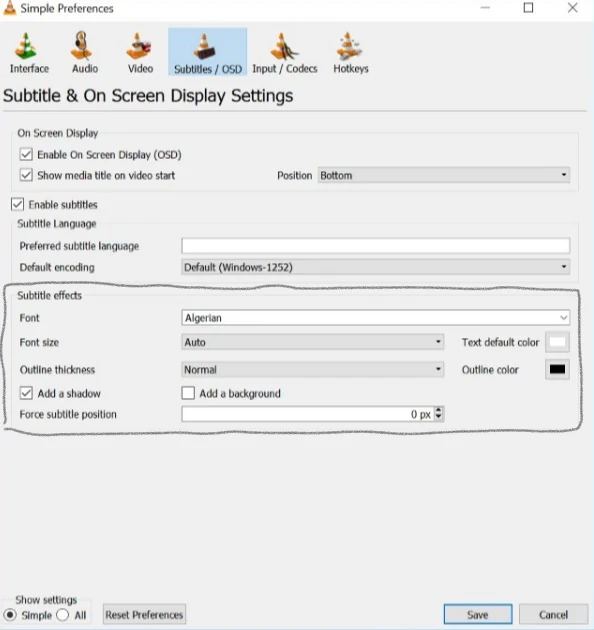
For a constant timing offset, try G and H during playback and watch the on-screen delay message. Reverse the direction if the difference grows. If Arabic appears as incorrect characters, review Tools → Preferences → Subtitles/OSD and its encoding setting; choose UTF-8 when that is how the subtitle file was saved. Try a font that includes Arabic and a readable size, save, and reopen the video. Font choices cannot change words already burned into the video image, and switching tracks cannot hide them. The subtitle documentation explains text and image subtitle formats.
Isolate a problem before changing settings
- No sound: check VLC’s mute control, Audio Track, the output device, and the Windows volume mixer. Try another clip; a problem with only one file can indicate a missing or damaged audio track.
- Black or stuttering video: try a lower-resolution local file and update VLC and the graphics driver from their official sources. If you experiment with hardware acceleration under Input/Codecs, record the original setting, save, restart, and compare. Restore it if it does not help.
- Subtitles gradually drift: find subtitles matching the video’s running time and edit. A fixed delay cannot repair a different cut or frame rate.
- Every file fails: note the VLC version from Help → About and the steps causing the failure. Reset Preferences is an option after you record your settings; resetting removes customisations. Consult the official Windows FAQ, remembering that some examples describe older systems.
Updates, licensing, and safety
Open trusted files and stream addresses, and keep VLC updated through VideoLAN. A video does not require an unrelated browser extension or unknown player installer. VLC is free software; its release files and application information describe the component licences, while the VideoLAN legal page explains redistribution. The player’s licence does not grant permission to publish a film or subtitle file. Check the rights to the content before sharing it.