Microsoft PowerToys: download, install, and use FancyZones
Need to download Microsoft PowerToys for Windows 11 or 10? Start with an official installer, then enable one utility for a task you actually need. This walkthrough takes you from choosing a download to arranging windows with FancyZones, renaming practice files with PowerRename, and trying a Keyboard Manager mapping. Each exercise includes a result check and a way to undo the change.
Choose a utility for a specific task
- Arrange windows: start with two FancyZones zones and check that each window moves to the intended position.
- Rename many files: try PowerRename on copies and inspect every previewed name before applying.
- Change a key or shortcut: use Keyboard Manager while keeping a clear way to remove the mapping.
Before using important files in a renaming task, review Windows file backup and restoration. For finding an organized file later, continue with Everything file search.
Understand the collection
Microsoft PowerToys is a free, open-source collection for customizing work in Windows. Each utility is an independent feature you can enable or disable, such as window layouts, bulk renaming or keyboard remapping. You do not need every utility enabled. Choose a repeated task and measure whether a particular tool helps; the collection does not increase hardware specifications or solve every performance problem.
The collection’s general settings control matters such as updates and startup. Individual utility pages control shortcuts and behavior. These exercises start with ordinary windows and copies of files so you can see the change and return to the previous setup.
Check requirements and prepare examples
Microsoft lists Windows 11 or Windows 10 version 2004 or newer and a 64-bit x64 or ARM64 processor. Check Windows Settings, System, About for System type and your Windows release. Application compatibility with an older operating system does not establish that system’s ongoing security support.
Setup installs Microsoft Edge WebView2 Runtime when needed. Use the official guidance for errors rather than downloading unknown replacement libraries. Save your work and make three copies of sample images named trip-01.jpg, trip-02.jpg and trip-03.jpg in a test folder. On a managed computer, use your organization’s approved installation process.
Download and complete first setup
- Start at the official installation guide, then follow its Microsoft Store or GitHub releases link. The repository is microsoft/PowerToys.
- For a direct installer, expand the stable release’s Assets and choose x64 or ARM64 for your system. Per User installs for your account; Machine wide is for all accounts and may require additional privileges.
- Run setup, review the terms and destination, then open PowerToys Settings from Start or its notification area icon.
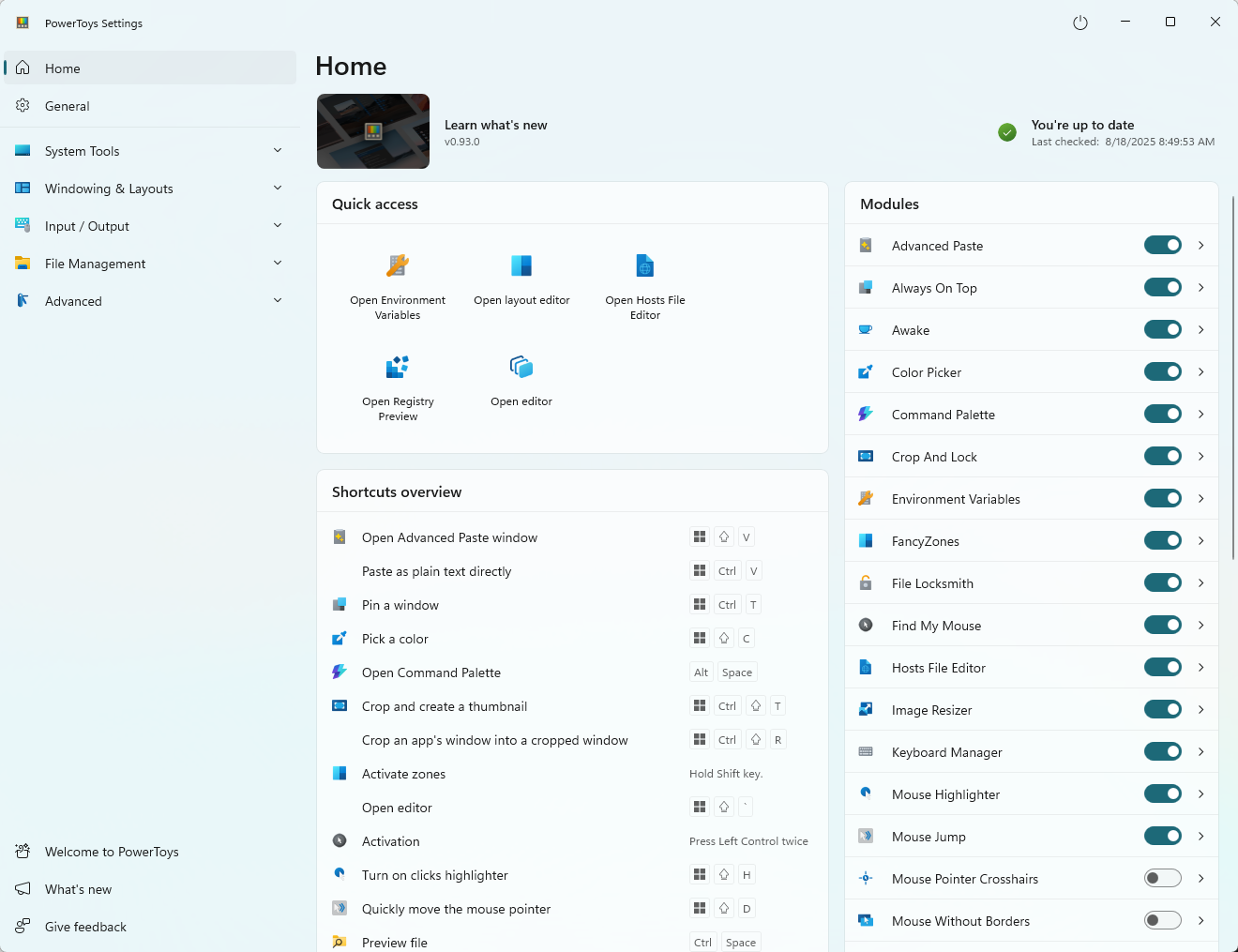
- Review Home for utility shortcuts and General for updates and startup. Begin with two utilities and note their shortcuts so they do not conflict with your usual applications.
FancyZones: arrange two windows
FancyZones defines areas that receive and resize windows. Enable it, choose Open layout editor, select the target monitor if you have several, and choose a two-column template. A preview lets you inspect the arrangement before returning to work.
- Open a normal browser window and File Explorer. Drag the first by its title bar while holding Shift with the default activation setting. The zones should appear.
- Move over the required zone and release the window. Place the second window in the other zone and try reading from one while working in the other.
- Return to the editor if the areas are too narrow. Adjust spacing or the number of zones. Enable overriding Windows Snap shortcuts only when you want to replace their behavior.
Some applications restrict resizing or run at a different privilege level. Test ordinary windows first. Window positioning does not save the documents open inside them, so save your work normally.
PowerRename: review before applying
Select your sample copies in Explorer, right-click and choose Rename with PowerRename. Depending on the version, Windows 11 may place it under Show more options. Enter trip in Search for and holiday in Replace with, leaving Use regular expressions off. The preview should show names such as holiday-01.jpg before you commit the change.
Check every row and apply the replacement to the filename only so the extension remains intact. Avoid unintentionally including subfolders. When the preview matches your intention, use Apply or the rename button in your release. Inspect Explorer and open a sample image. Renaming an extension does not convert a file’s format and can prevent its application from recognizing it.
Explorer can undo the last rename, but later file operations or session changes can affect that option. Keep a backup or original name list for important work. Learn regular expressions later, after understanding the patterns and exactly which filenames they match.
Try a keyboard mapping
Keyboard Manager remaps a key or shortcut while PowerToys runs. Open Remap a key or Remap a shortcut, choose the input and output carefully, then test in an empty Notepad document. Start with a key you rarely use and keep an alternative way to open settings.
Shortcuts can conflict with other applications and some protected system shortcuts cannot be remapped. Avoid testing in password fields or important documents. Delete your test mapping or disable Keyboard Manager to stop it. PowerToys must remain running for the mapping to work, so check its sign-in startup preference if you intend to use it daily.
Verify and troubleshoot
- Shortcut does nothing: confirm PowerToys is running, the utility is enabled and you are using the shortcut shown in its current settings. Try a combination another app does not reserve.
- Window will not snap: try another ordinary window and check Shift activation, the selected monitor and exclusions. The application may restrict resizing; elevated apps also have additional constraints.
- PowerRename is missing: check it is enabled, inspect Show more options and reopen Explorer if needed. Do not experiment on system folders.
- Install or update fails: check architecture, requirements, free space and the actual error. Use Microsoft’s guidance or the project issue tracker instead of a replacement installer from another site.
Verify one concrete result per exercise: two correctly arranged windows, intended filenames with preserved extensions, or a mapping that stops after you disable it. This makes both the benefit and the way back clear.
Privileges, privacy, and licensing
The project uses the MIT license with notices for other components. No paid “PowerToys activation” is required. Trademarks and third-party assets have their own terms. Update through Microsoft’s sources and consult the license before distributing modified software.
Utilities interact with windows, files and keyboard input; some features use clipboard data or optional services. Read each feature’s description before using it with private information. Begin with ordinary user privileges. Elevation serves specific documented cases rather than being a prerequisite for every exercise. Disable unused utilities and review preferences after major updates.
Before downloading PowerToys
Should I choose x64 or ARM64?
Open Settings, System, About and read System type. Match the installer architecture on the Microsoft download instructions linked above instead of guessing from the processor name. Check the Windows requirements on that page before downloading.
Do I download each utility separately?
Start with the PowerToys package and enable the utility you need in its settings. This guide covers three specific exercises. If you mainly need to find files, read the Everything file-search walkthrough before changing how those files are organised.